Wednesday, July 14, 2010

Discovering Leads (Part 3 of 3)


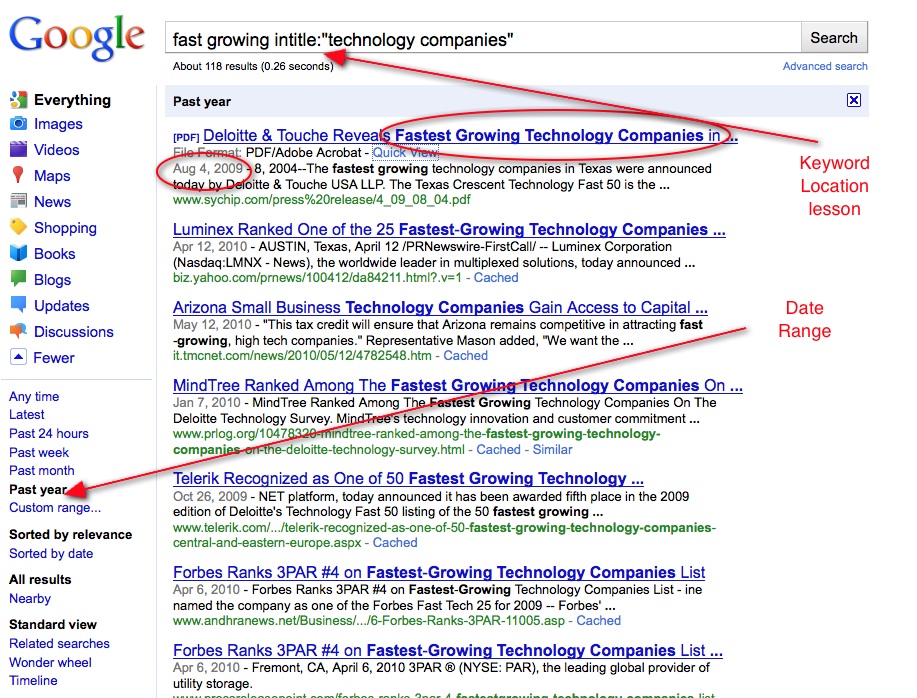
Here is a simple search to find recent and fast growing technology companies.  Of course, this search could be repeated with different search terms to find opportunities that are relevant to your market.  
Recent_fast growing companies.jpg


In this search, I combined keyword location and date range to find reports and press releases of companies that were identified as fast growing. 
 
Try using these search skills to improve your ability to find business critical information.             

Discovering Leads (Part 2 of 3)


Discovering leads is a challenging task, and using Google can be a powerful tool when used effectively. 


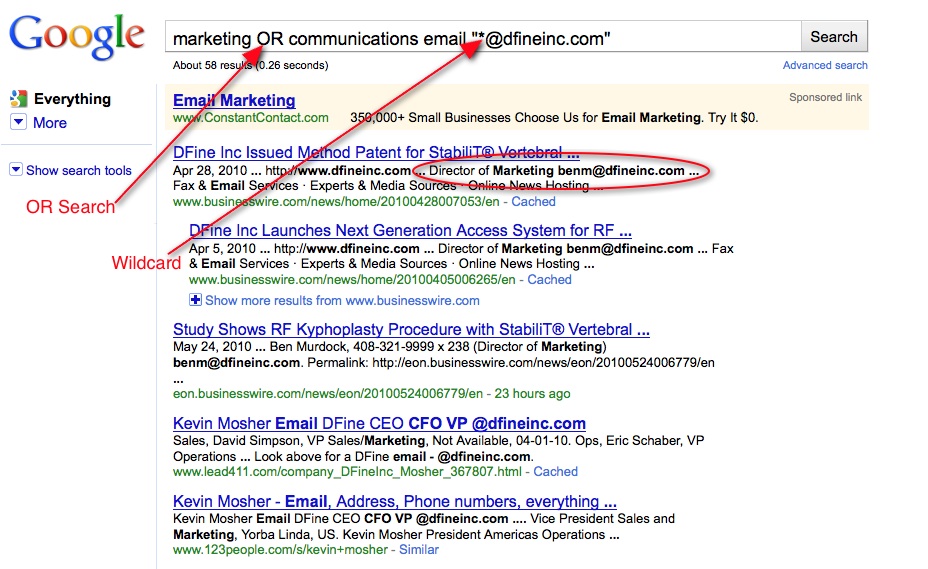
Here is a sample search I did for someone who asked how to find the email address of the director of marketing or communications at DFine Inc.


I combined several searches, as you can see below.


  finding director of marketing OR co.jpg


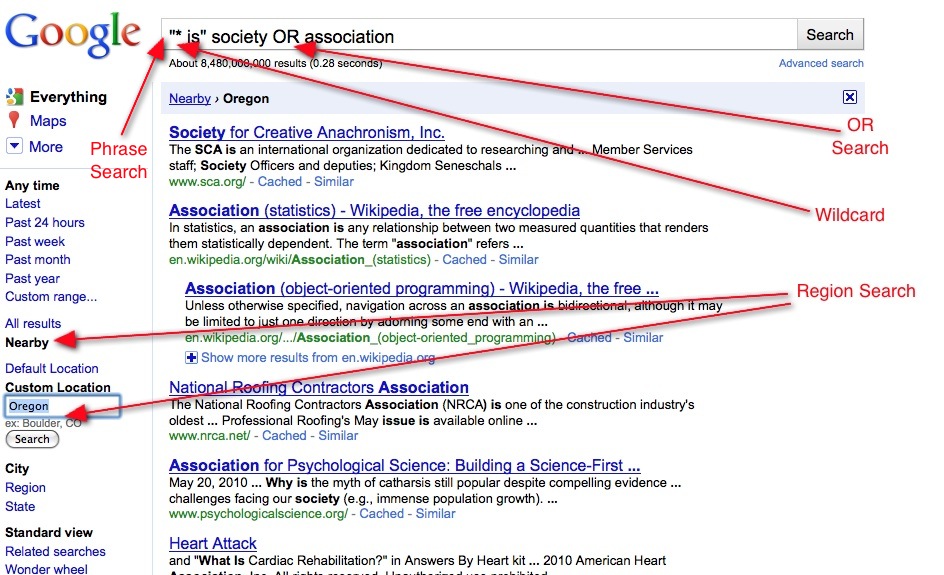
In this search, I used Phrase Search to keep the email information together. Wildcard Search had Google fill in the blank of the person's name.  OR Search was helpful since the person who asked me to do this search did not know what the correct naming convention would be, and OR Search allowed me to search for both terms at the same time.


Try using this same type of combination in your field to see how you can use Google to easily find business critical information.             
Discovering Leads (Part 1 of 3)


Discovering leads is a challenging task, and using Google can be a powerful tool when used effectively.  Here is a sample search I did for someone who asked how to find names of Associations or Societies.  
 
By combining several searches, as you can see below.
Discovering Societies OR Association in a specific state.jpg


This search generated many leads that this director of sales was then able to pass on to her sales team.
 
In this search, I combined: Phrase, OR, Wildcard, and Region search to discover information that can easily be acted on to turn into real leads.
Try using this same type of combination in your field to see how you can use Google to easily find business critical information.             
Find Region Specific Information (Part 4 of 4)


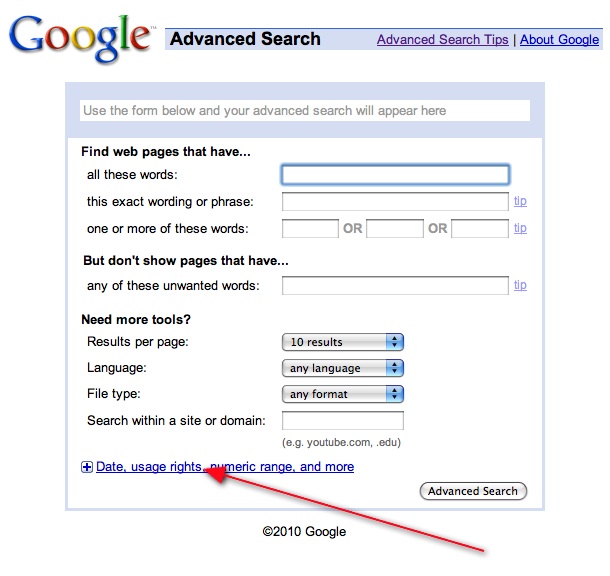
You can use the Advanced Search page to limit your results to a specific country.  This is a great feature, as it allows you to also use other filters and operators as well.
 
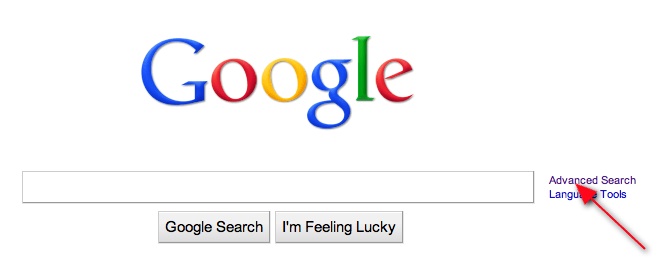
First, click on the link to the Advanced Search page.
 
Go to Advanced Search Page.jpg
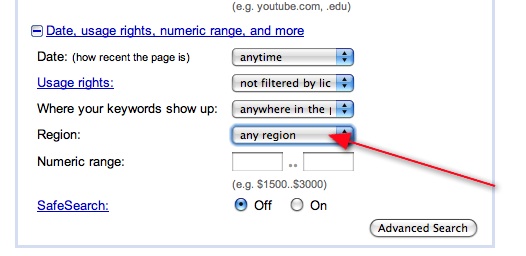
Then, expand the Advanced Search page to find more search options.
expand advanced search page.jpg
 Next, select the region option.
 
click to select region.jpg
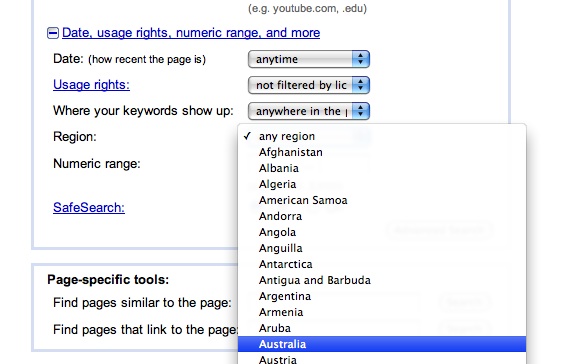
Finally, select the country you want to limit your results to.
 
select a country.jpg
 
 
For example, you can compare Microsoft Office to Google Apps and get results limited to Australia.  This is a great way to learn more about what the locals are thinking.  Click here to see the results.

Find Region Specific Information (Part 3 of 4)

In this scenario, assume you are trying to contact people with the title VP of Sales in your area.  In this case, we will look for people in Greater Seattle.

Search by Zip Code
1.  Enter in you keywords.  In this case, “VP of Sales” (Use quotes and keep the terms together)
2.  Enter in the zip codes you want to search within.  In this case, 98000..98200

See the results
In these results, I notice that there are many offers from job websites.  I can further refine my search by typing [-jobs], which will remove the unwanted results.
 
 
Next lesson, we will explore how to use the advanced search page to find region specific results.

Find Region Specific Information (Part 2 of 4)

Last week, we covered how to use the advanced search page to limit your results to a specific region country.  This week we will discuss how to find results from multiple countries.

Each country has its own domain extension.  For example, in the United States the domain extension is .com, in the United Kingdom it is .uk.  A directory of domain extension can be found at the Internet Assigned Numbers Authority, http://www.iana.org/domains/root/db/.

To find limit your results to website’s with a specific countries web extension, use Site Search.

Site Search
1. Type in your keywords, followed by site: and the country code representing the country you want to limit your results to.
2. For example, “green technologies” site:.uk, click here to see results of this search

To search within websites from multiple countries, use OR Search.  This will allow you to conduct multiple site searches simultaneously.  

OR Search
1. Enter your keywords, place an OR in between each site:.
2.For example, “green technologies” site:.uk OR site:.fr.  Click here to see results for this search.


Next time, we will cover how to search within specific zip codes.

Find Region Specific Information (Part 1 of 4)

Finding local information is one of the hardest challenges that face the knowledge worker. 
The MicroLearning email series is going to dedicate the next 4 emails to different techniques on how to find region specific information.  This lesson will demonstrate the Nearby function that was recently added to Google's show options tab.
Nearby Search

1.  To start, enter the keyword, such as a company name or product, into the Google search bar.
2.  Next, click on the show options tab on the left hand side above the search results.
3.  Click Nearby.  To see results for a different city or region, select the Custom Location tab.
Click here to see results for Starbucks Pike Place coffee nearby Chicago.